- Payroll
- Setup
Add an employment contract and adjust a salary
Give an employee their first contract in Sumly, schedule a pay rise for a future date, and close the job with an end date.
 Sumly team
- Published
- 1:45 video
On this page4 sections
Sumly can't produce a payslip for an employee until they have a contract. The contract holds the job title, the gross salary and the dates the job starts and ends, and every later pay change hangs off it. Add one when someone joins. Then come back to the same card to record a rise or close the job.
What sits on an employee's page
The employee's details sit on the left and the job sits on the right. Open the employee's own record, the one with the "Back to employees" button at the top left. "Employee information" runs down the left in three blocks: "Personal details", "Payment details" and "Tax details". The right-hand column holds the employment itself. On a new employee both of its panels are empty, with "No contracts yet." above "No payslips yet."
You don't need the rest of the record finished first. A contract saves while "Personal details" and "Payment details" are still blank, so add the contract now and complete those before the first pay run. Registering as an employer is a separate job outside Sumly. Our guide to hiring your first employee in Cyprus covers it.
Adding the contract
Click "New contract", fill in the three required fields and save.
Open the form
Click "New contract" at the top right of the Contracts panel.
Name the job
"Job title" is required. "Contract type" is "Permanent" or "Temporary" and comes pre-filled as "Permanent", so a normal hire needs nothing here.
Set the pay
"Salary basis" starts on "Annual salary", so the amount field below it reads "Gross annual salary". It is required. Enter the gross figure, before any deductions.
Pick the start date
"Start date" is required. Type it in the dd.mm.yyyy format the field shows, or open the calendar and pick the day.
Save it
Leave "End date" blank and click "Add contract". The field is optional because most people are hired with no leaving date agreed. You come back to this contract and set the end date when they leave.
The saved contract shows as a card with the job title, a "Current" badge, the salary, the contract type and the two dates. Below it is "Salary history", which starts with a single line, the start date and the figure you entered. From now on, that history records what this person was paid and when it changed.
"New contract" is now greyed out. It stays that way until the current contract has an end date.
Scheduling a pay rise
Every pay change goes through "Adjust salary" on the contract card. The modal opens with "Salary basis" already set, and that dropdown holds "Annual salary" and "Hourly rate". The amount starts blank, so you type the new gross figure rather than editing the old one. "Effective from" is required. It's the date the new pay starts, not today. "Note" is optional, but on a rise dated months ahead it's worth writing down why. Its placeholder, "Annual review", is the kind of thing that belongs there. Click "Adjust salary" to save, and a "Salary adjusted" toast confirms it.
A future date changes nothing today. Sumly adds the rise to "Salary history" as a dated row badged "Scheduled", with a "Remove" link beside it. The card header keeps showing the current figure until the date arrives. So you can enter a rise agreed months ahead once and let it land on its own. How much to pay yourself in the first place is a separate decision, and salary versus dividends in Cyprus works through it.
Closing the contract with an end date
Open "Edit contract", pick the end date and save. The edit form does less than the one you started with. You can change only "Job title" and "End date". "Contract type" is greyed out and "Start date" is locked. Those are the two things that change in a job: a move to another position in the company, and the day the person leaves. The end-date calendar disables every day before the start date, so a contract can't end before it began. Pick the day and click "Save changes".
Once the end date is saved, "New contract" works again. New terms go in as the next contract, and the old one stays intact behind it.
Common questions
That's the payroll side of your setup done. Payroll is a per-employee add-on, so change your plan and add-ons first if you haven't turned it on yet. Our guide to social insurance in Cyprus covers the contributions that come on top of the salary. Next comes the everyday routine, starting with paperwork: getting receipts and bills into your inbox.
More tutorials.
 2:52
2:52- Setup
- Bank
- VAT
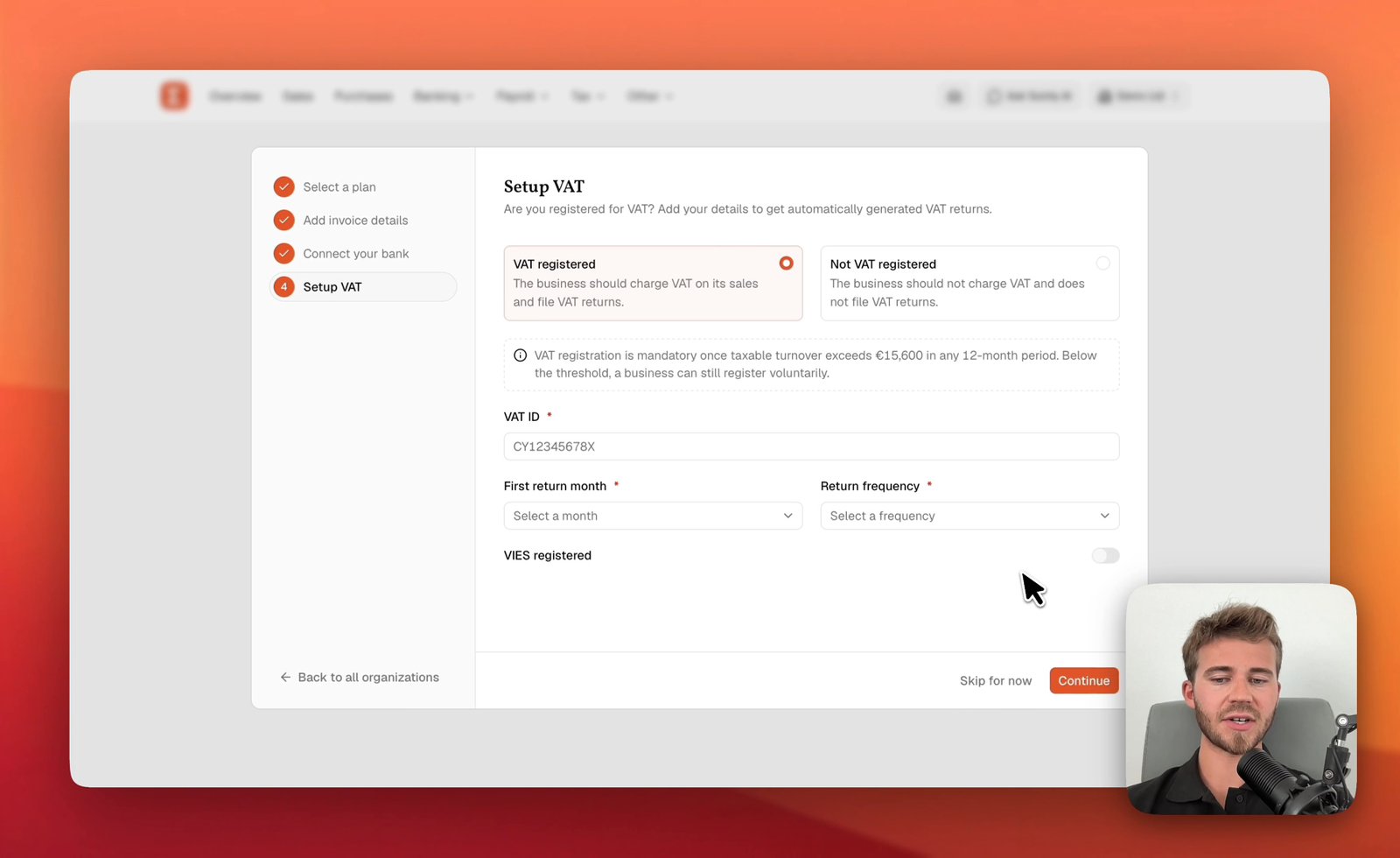
Set up your Sumly account and company
Create your Sumly login, add your company as an organisation, then work through the four setup steps: plan, invoice details, bank and VAT status.
Sumly team2:52 video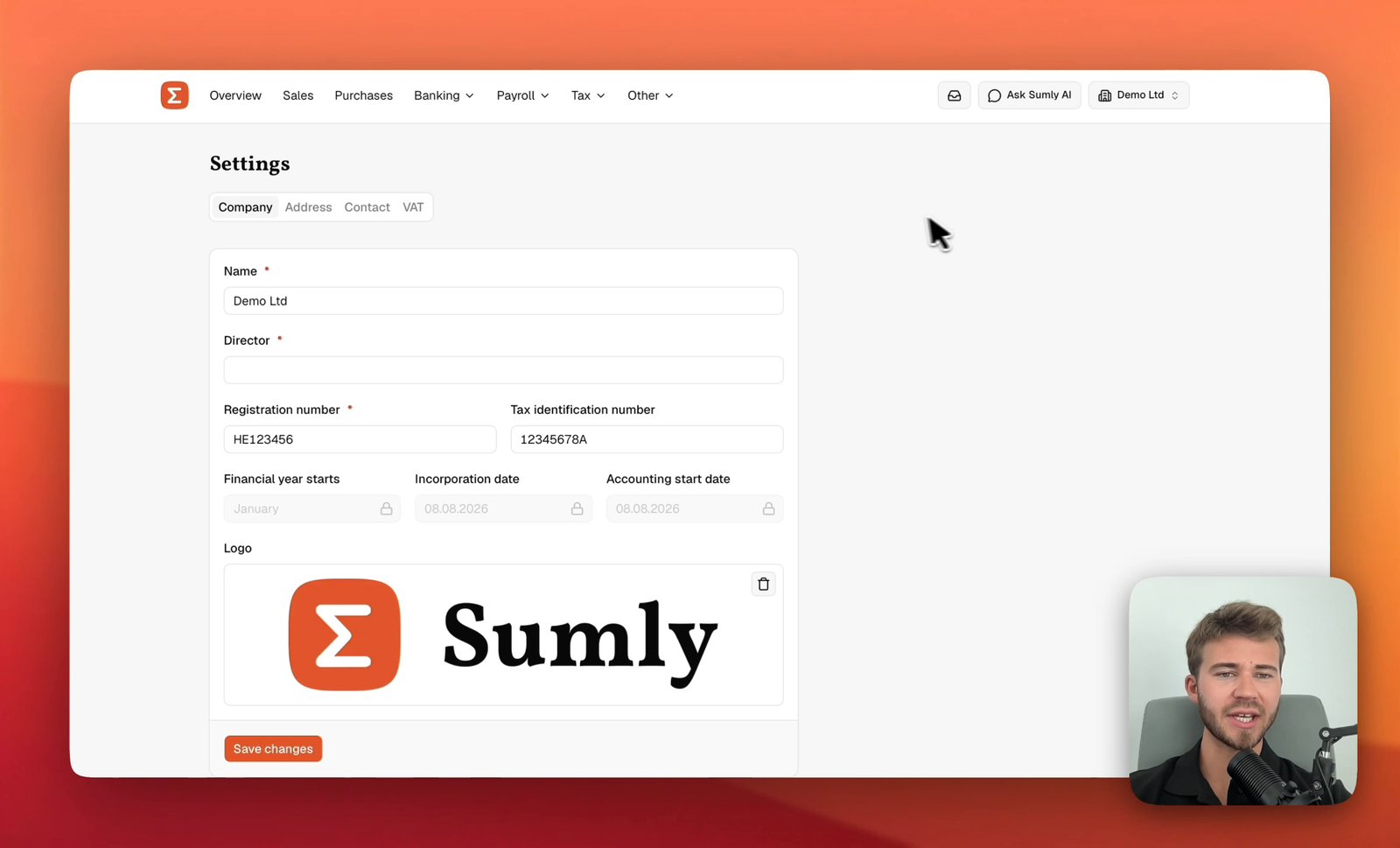 0:42
0:42- Setup
- VAT
- VIES
Company details, address and VAT status
Set your company details, address, contact and VAT status in the four Settings tabs behind the organisation switcher. Do it before you enter a transaction.
Sumly team0:42 video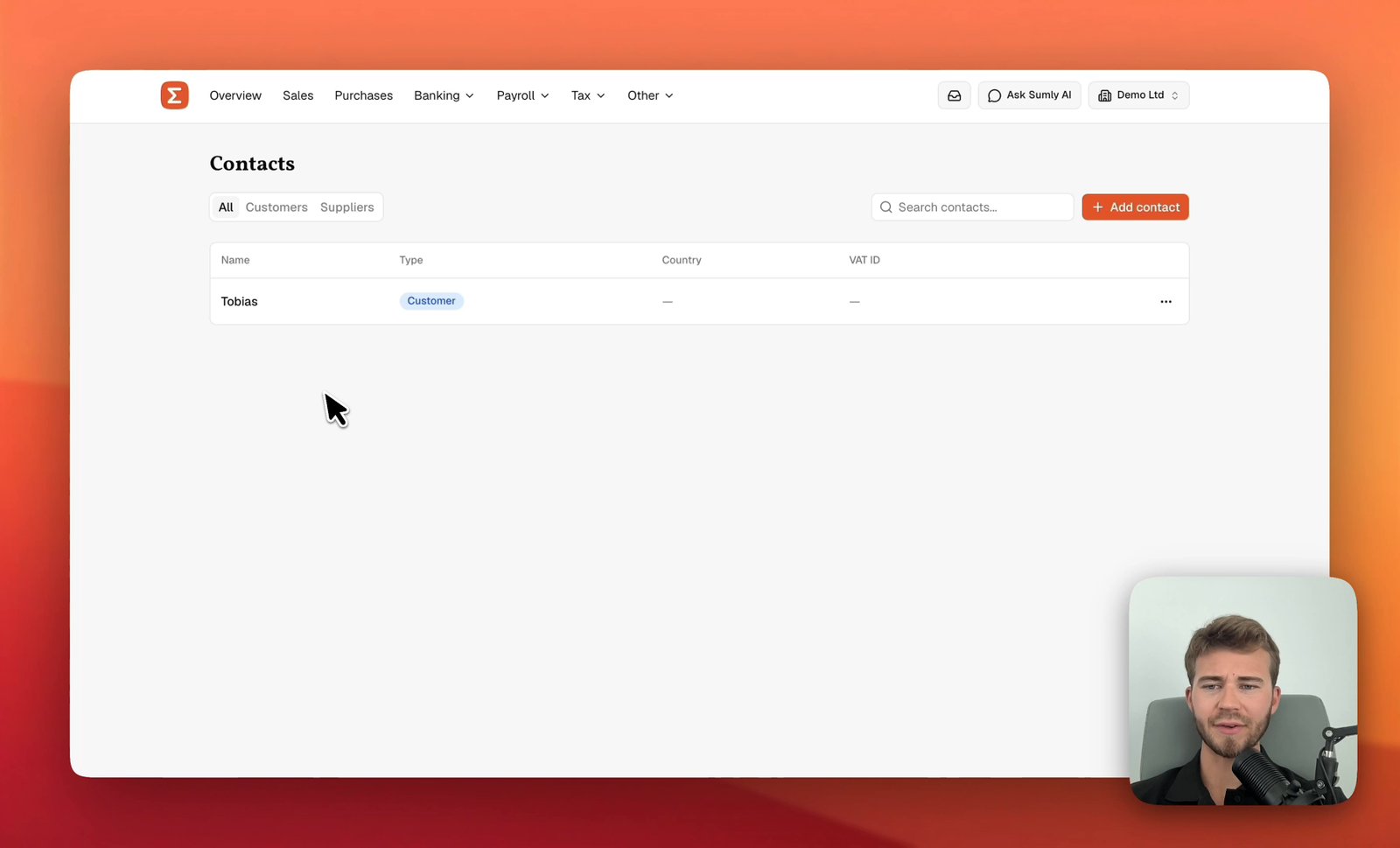 0:41
0:41- Setup
- Bookkeeping
Add a customer or supplier
Add a customer or supplier to Sumly's Contacts list, with its VAT ID, address and the defaults that carry onto its documents, then edit or archive it later.
Sumly team0:41 video
Ready when you are.
Start a new company, or bring the one you already have.