- Setup
- VAT
- VIES
Company details, address and VAT status
Set your company details, address, contact and VAT status in the four Settings tabs behind the organisation switcher. Do it before you enter a transaction.
 Sumly team
- Published
- 0:42 video
On this page5 sections
Settings holds four things Sumly needs to know about your company: who it is, where it's registered, how to reach it and whether it charges VAT. It takes five minutes. Do it right at the start, after you create the company and before you enter a single transaction.
Where Settings lives
Settings sits behind the organisation button at the far right of the top bar, not in the top nav. It's the button showing your company name, just past "Ask Sumly AI". Click it and the menu opens with your account at the top, then your organisations, then "Settings", "Members" and "Billing".
Choose "Settings". The page opens on the first of four tabs, "Company", "Address", "Contact" and "VAT". Work through them left to right.
Company: name, director and numbers
"Name" already holds the company name you typed when you created the organisation. "Director" is empty on a new company even though it's required, so it's easy to skip past. Type the director's name in.
Then the two identifiers. "Registration number" is required and takes the company's HE number, the registration number from the Registrar of Companies. "Tax identification number" sits beside it and is optional. Leave it blank if you don't have it yet and come back later.
Three fields below are greyed out with a padlock: "Financial year starts", "Incorporation date" and "Accounting start date". They're already filled in, and this screen won't let you type into them. "Logo" is at the bottom of the tab. If you skipped the logo when you created the company, add it here so your invoices go out branded. If one is already there, the bin icon beside it removes it.
Click "Save changes" before you move on.
Address and contact
"Address" is the company's registered address, and "Contact" is how to reach the business. The "Address" tab has "Address line 1", "Address line 2", "Postal code", "City" and "Country". It's optional, so nothing stops you moving straight past it. Fill it in now anyway, while you're on the screen. Every field is blank on a new company. "Country" is a dropdown that starts on "Select a country". It doesn't default to Cyprus, so pick it yourself.
"Contact" has the same layout for business details: "Phone", "Email" and "Website". The placeholder on "Website" reads "https://", so enter the full address.
VAT status, and the fields it adds
The "VAT" tab shows the answer you gave when you created the company. If you set the business up as VAT registered then, the details you entered are already here. If you didn't, the tab opens on "Not VAT registered".
Each option has its own line of explanation. "VAT registered" is the business that "should charge VAT on its sales and file VAT returns". "Not VAT registered" is the business that "should not charge VAT and does not file VAT returns". A note under the pair explains when registration stops being optional. Our guide to VAT registration in Cyprus walks through the same test in more detail.
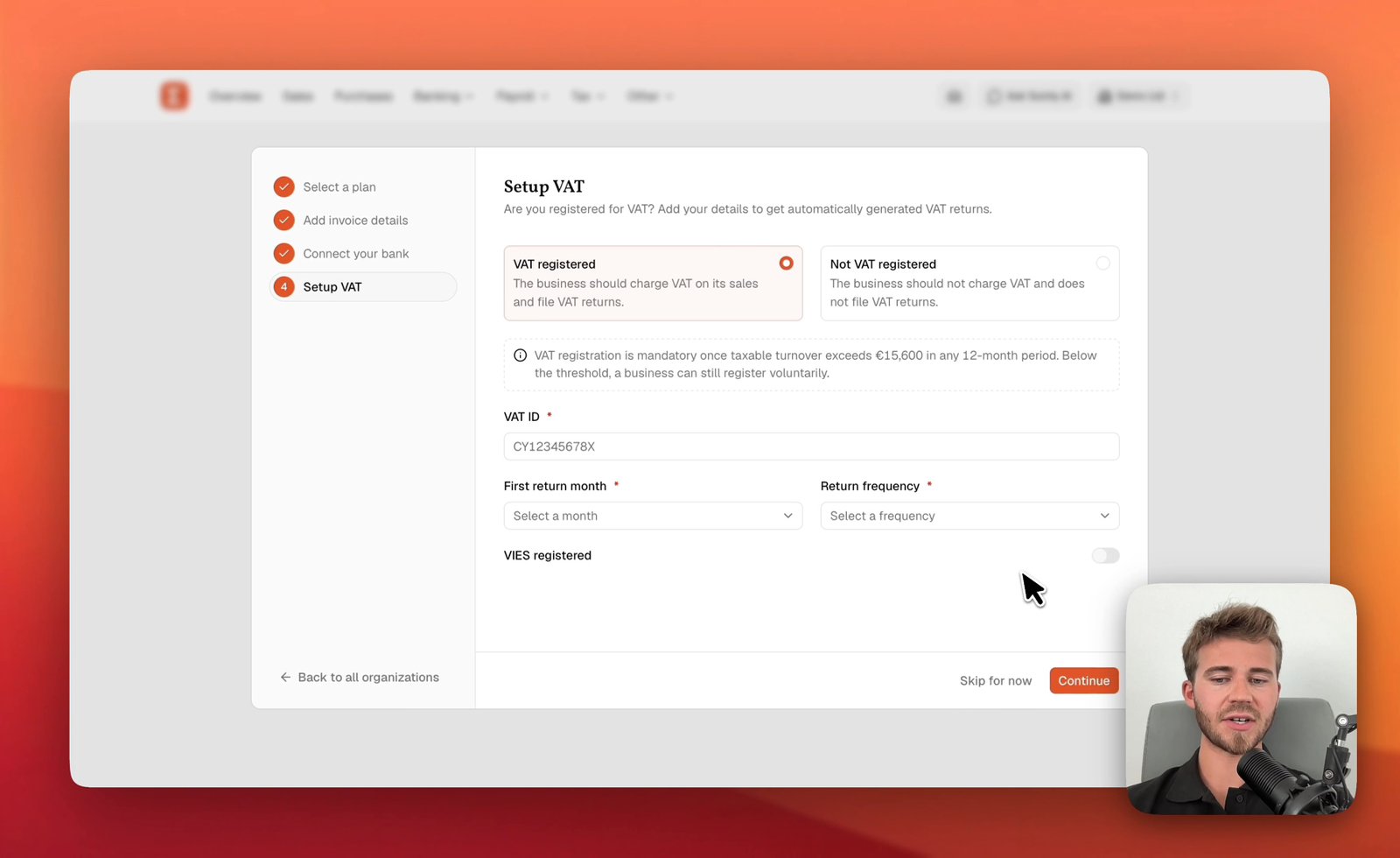
Choosing "VAT registered" reveals three more required fields and a toggle. None of them appear until you pick it, so it's easy to leave this tab thinking there was nothing to fill in.
- VAT ID. The placeholder reads "CY12345678X", so include the country prefix.
- First return month. The month your first VAT return covers.
- Return frequency. How often the business reports. If you're not sure which applies to you, how to file a VAT return in Cyprus covers the periods.
- VIES registered. A toggle, off by default. VIES is the EU system for reporting sales to VAT-registered businesses in other EU countries. Turn the toggle on if the business is registered for VIES. What VIES is and when it is due explains when that applies.
Read the month and the frequency back before you save. You can set each one only once, and you can't edit them afterwards. Save the tab when you're done. If the business registers for VAT later, come back to this screen.
What to do next
That's your company described. Next come the people you sell to and buy from, the other side of every transaction. Add a customer or supplier is a two-minute job, and adding a couple now makes your first invoice quicker.
More tutorials.
 2:52
2:52- Setup
- Bank
- VAT
Set up your Sumly account and company
Create your Sumly login, add your company as an organisation, then work through the four setup steps: plan, invoice details, bank and VAT status.
Sumly team2:52 video 0:41
0:41- Setup
- Bookkeeping
Add a customer or supplier
Add a customer or supplier to Sumly's Contacts list, with its VAT ID, address and the defaults that carry onto its documents, then edit or archive it later.
Sumly team0:41 video 0:53
0:53- Setup
Invite your team into Sumly
Invite a co-founder, a colleague or your outside accountant to your Sumly organisation by email, choose the role they get, and track the invite.
Sumly team0:53 video
Ready when you are.
Start a new company, or bring the one you already have.