- Setup
Change your plan and add-ons
Move between plans, turn add-ons on and off, and find your card and invoices in the Stripe portal.
 Sumly team
- Published
- 1:09 video
On this page5 sections
What you pay us isn't fixed. Change it on the Billing page. Move up to Premium when you want a Sumly certified bookkeeper reviewing the books. Turn an add-on on for the months you need it.
How to read the Plan section
Each plan has a card, and the one you're on carries an "Active" chip and a "Current plan" chip. To get there, open the organisation switcher at the top right, the one showing your company name, and choose Billing, next to Settings and Members. The page opens on "Plan", with one card for each plan side by side.
Your current card also shows its price and a line underneath with the date it renews. The other cards show what they would cost and the button that moves you to each one. "Manage" sits on the current card with an external-link icon, because it takes you out of Sumly to the Stripe billing portal.
Change your plan
Click "Switch to" on the plan you want, check the figures, then confirm. Every plan change goes through the same confirmation dialog.
Pick the change you want
The card of the plan you want has a "Switch to" button with its name, such as "Switch to Premium".
Wait for the figures
The dialog opens with grey placeholder rows and fills them in a moment later. "Confirm change" stays disabled until the numbers arrive.
Read the proration
A change does not start you from scratch. Proration means time you have already paid for comes back as a credit, and you pay for the new plan from today, so the two largely cancel out. "Due today" can come out as zero, or as a negative amount instead of a charge. The line under it gives the new recurring amount and the date it starts.
Confirm the change
"Confirm change" shows a spinner, then the dialog closes and the cards redraw.
Check the cards swapped
"Active" and "Current plan" move to the plan you chose, and "Manage" moves with them.
The cards show prices before VAT. The dialog's recurring figure includes VAT, so the amount it quotes for the next renewal is higher than the price on the card. Our guide to Cyprus VAT rates covers which rate applies to what.
Moving from Base to Premium does one thing the screen doesn't show. Once you confirm, your Sumly certified bookkeeper contacts you within 24 hours to take over the review of your books. You don't have to write to us first.
Turn an add-on on or off
Click "Activate" or "Deactivate" on the add-on's card. The cards sit under "Add-ons", below the plans, and there are three. "IP Box" is priced at "€50 month" and adds calculations and reports for the Cyprus IP box, the regime that lowers tax on qualifying income from intellectual property. "Payroll" is "€15 employee/month". "Projects" is "€10 month" and tracks income and costs per project.
Switching one on takes a single click on "Activate". There's no dialog, no price preview and no confirmation step. The card gets a green "Active" chip and its button changes to "Deactivate".
Under the cards, "Missing a feature?" points to an email address, not a form. Send the details to support@sumly.cy and we'll look into it.
Your card, your invoices and cancelling
All of these live in the Stripe billing portal. Click "Manage" on your current plan card to get there.
"Active plan" lists your plan and every add-on on one line, with the next amount and the date it's due. Open that row to see the upcoming payment itemised, with VAT added and the total. "Payment method" holds the card on file. "Billing information" holds the name, email and billing address printed on your invoices, so check them before the next one goes out. "Invoice history" lists every invoice with its due date, status, number and amount, with a search box and an "Outstanding" filter.
An add-on you've deactivated still appears in the "Active plan" line until the day it expires. That's correct. You're still paying for it, and still using it.
To cancel, use "Cancel plan" in the same "Active plan" row. Email us at support@sumly.cy before you press it. Tell us what isn't working, and we may be able to fix it instead.
What comes next
Billing is settled, and your team is already in. The people you pay are a different list from the people who log in, so the next job is putting an employee on the books. Add an employment contract and adjust a salary covers the contract, the salary and the changes that follow.
More tutorials.
 2:52
2:52- Setup
- Bank
- VAT
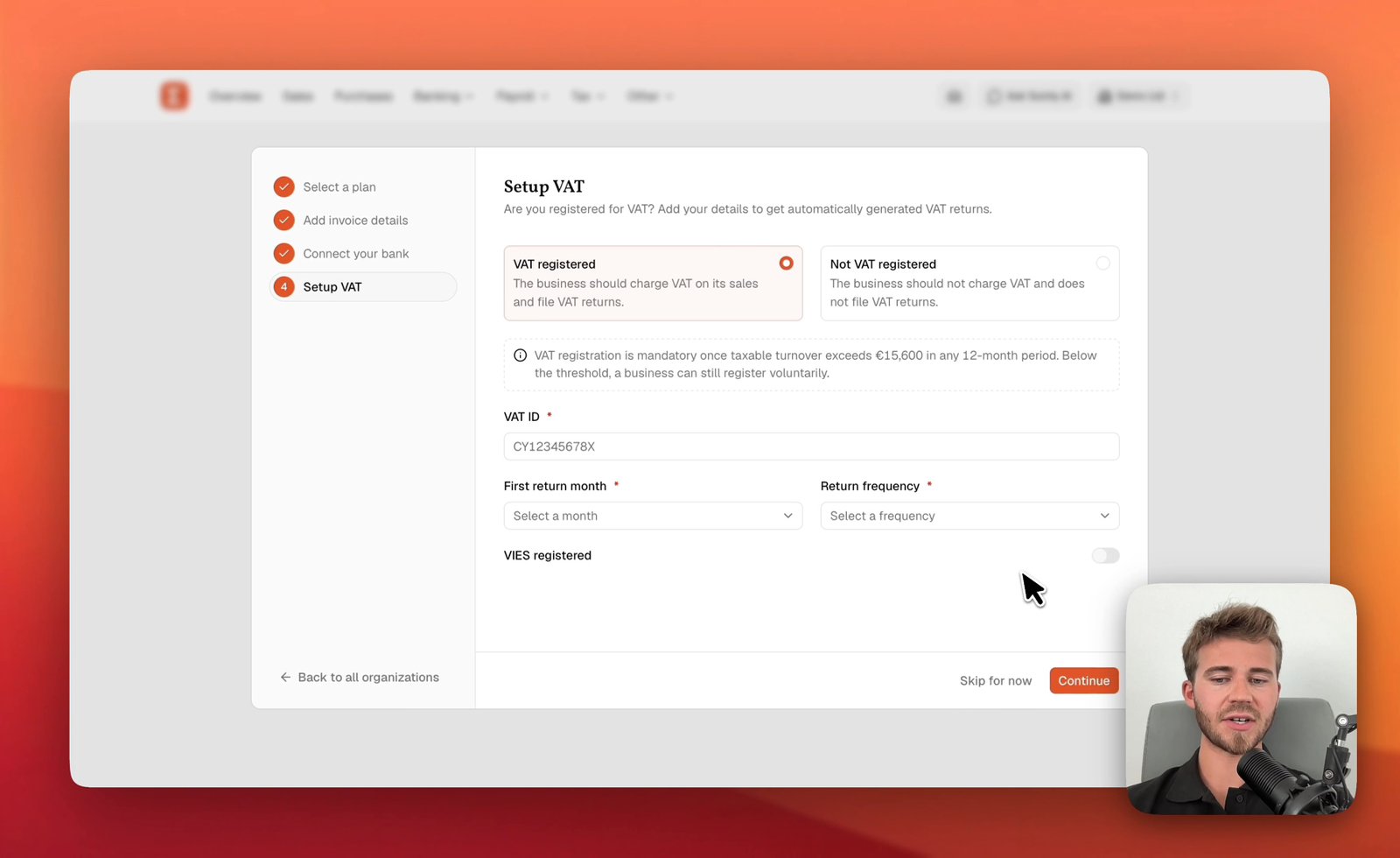
Set up your Sumly account and company
Create your Sumly login, add your company as an organisation, then work through the four setup steps: plan, invoice details, bank and VAT status.
Sumly team2:52 video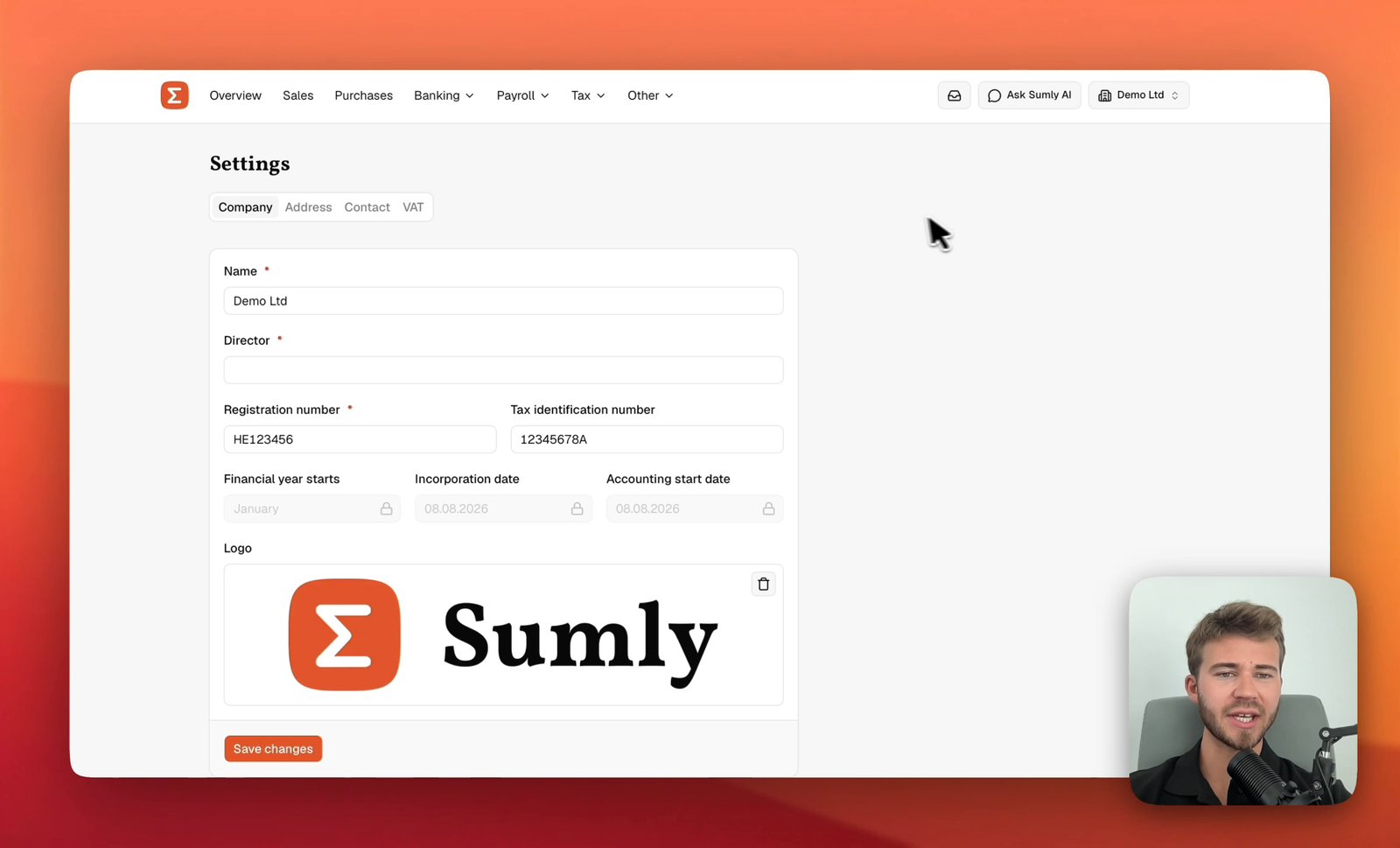 0:42
0:42- Setup
- VAT
- VIES
Company details, address and VAT status
Set your company details, address, contact and VAT status in the four Settings tabs behind the organisation switcher. Do it before you enter a transaction.
Sumly team0:42 video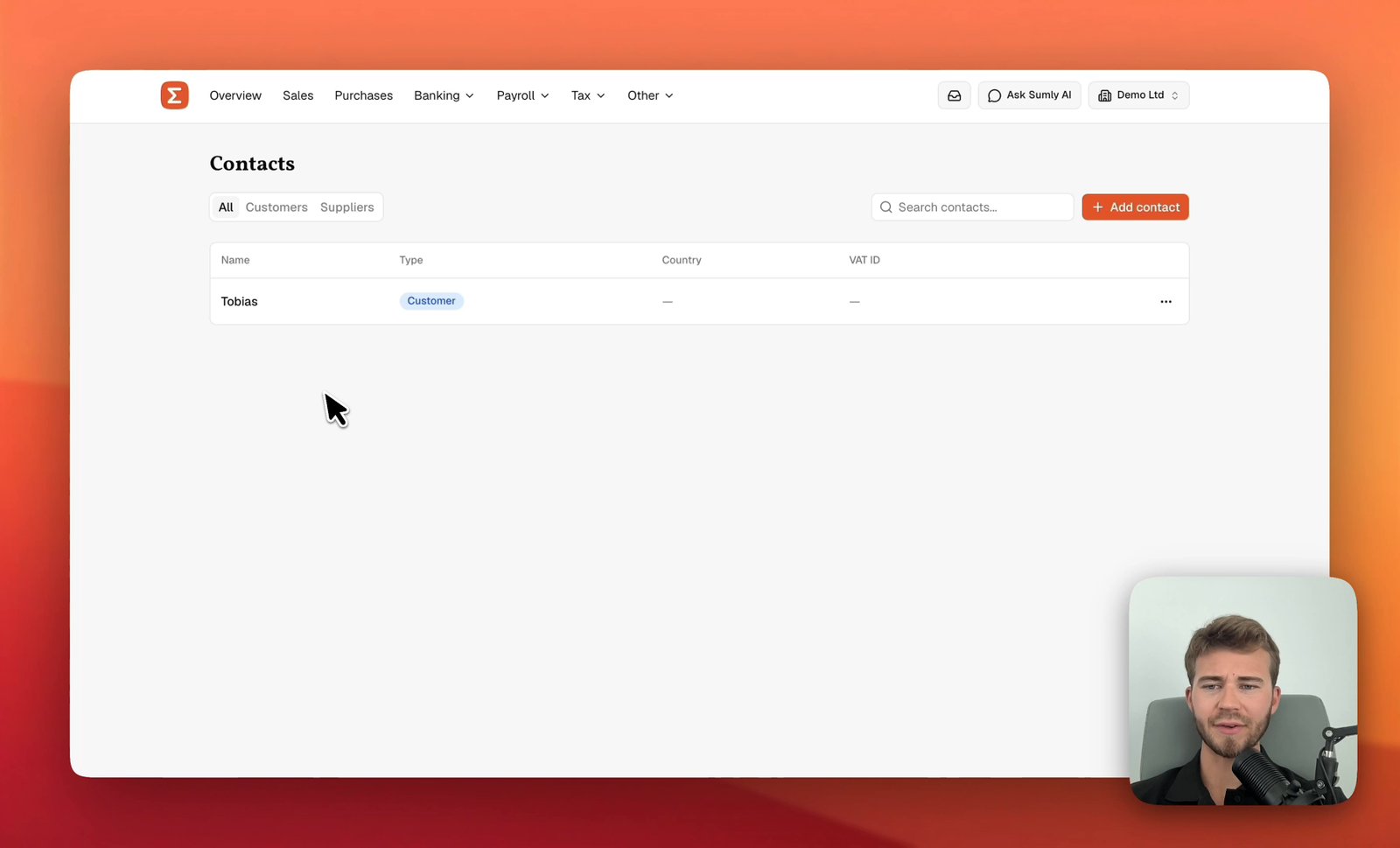 0:41
0:41- Setup
- Bookkeeping
Add a customer or supplier
Add a customer or supplier to Sumly's Contacts list, with its VAT ID, address and the defaults that carry onto its documents, then edit or archive it later.
Sumly team0:41 video
Ready when you are.
Start a new company, or bring the one you already have.