- Setup
- Bookkeeping
Add a customer or supplier
Add a customer or supplier to Sumly's Contacts list, with its VAT ID, address and the defaults that carry onto its documents, then edit or archive it later.
 Sumly team
- Published
- 0:41 video
On this page5 sections
A contact is the record behind every invoice you send and every bill you record. Add one the first time you invoice someone or get a bill from them, or add the few you already know while you set the company up. It takes under a minute either way.
Where Contacts lives
Contacts is under the "Other" menu in the top navigation, not a top-level item. Open "Other" and choose "Contacts". "Manual Journal" and "Opening Balance" are in the same menu.
On a new company the list is empty and says "No contacts yet." Above the table are tabs for "All", "Customers" and "Suppliers", a "Search contacts…" box, and "Add contact" on the right. The table has four columns: Name, Type, Country and VAT ID.
Customer, supplier, or both
Tick both if you buy from and sell to the same party. Click "Add contact" and the "New contact" dialog opens with both type boxes unticked, so tick at least one yourself.
"Customer" and "Supplier" are checkboxes, not a choice between two, so one contact can be both. A company that buys from you and also invoices you gets both ticks on one record. Don't add it twice, once as a customer and once as a supplier, or what you sold and what you bought end up on two separate contacts. What you tick sets the badge in the Type column and decides whether the contact shows under the "Customers" tab, the "Suppliers" tab or both.
Name, registration number and VAT ID
Only the name is required. "Details" has three fields, "Name", "Registration number" and "VAT ID", and only "Name" has the required asterisk. You can create the contact with a name alone and fill in the rest later.
Add the VAT ID now if you have it. That's easier than going back for it halfway through an invoice. Our guide to what a Cyprus VAT invoice must contain covers when it has to appear.
Below those is a separate checkbox, "Registered for EU VAT (VIES)". VIES is the EU's VAT Information Exchange System for sales between businesses in different EU countries. Typing a number into "VAT ID" doesn't tick the box, because the two record different things. The VAT ID is the number. The checkbox says this contact is a company in another EU country that is registered for VIES. Tick it in that case and leave it clear otherwise. If you're unsure what that means for your own reporting, read VIES submissions explained.
"Contact information" comes next, with "E-mail" and "Phone". Both are optional.
Address and defaults, below the fold
Both sit under the fold, so scroll down to reach them. "Address" takes "Address line 1", "Address line 2", "Postal code", "City" and a country picker that starts on "Select a country".
"Default settings" has three pickers. "Currency" has a "Search currencies…" box, "Payment terms" starts on "Select terms", and "Tax rate" has a "Search VAT codes…" box. They set the defaults for this contact's documents, so you choose them once instead of every time. Which VAT code belongs on a sale depends on the supply, not the contact. Our guide to Cyprus VAT rates works through it.
Create it, then change it later
Check the details, then click "Create". The dialog closes, a "Contact created" toast appears, and the contact shows in the list with its type badge.
Any field you left blank shows as a dash. Country and VAT ID each have their own column, so the records you rushed are easy to spot later.
The menu at the end of each row has two items, "Edit" and "Archive". There's no delete. You archive a contact you no longer trade with.
Common questions
If you haven't set your own company's details and VAT status yet, do that first, because your outgoing invoices carry them. Otherwise your contacts are ready. Next, invite your team into Sumly so everyone in your company works in the same books.
More tutorials.
 2:52
2:52- Setup
- Bank
- VAT
Set up your Sumly account and company
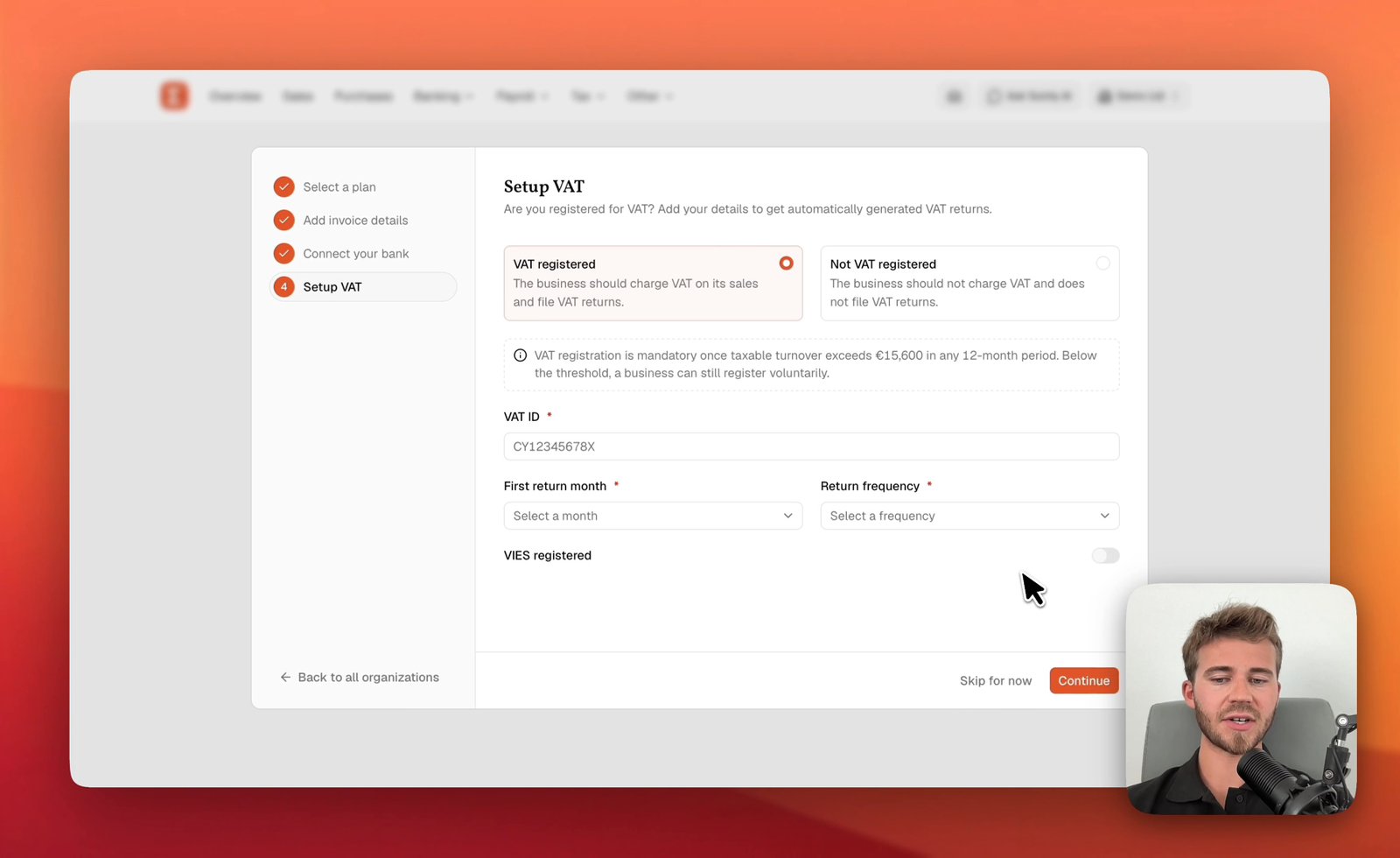
Create your Sumly login, add your company as an organisation, then work through the four setup steps: plan, invoice details, bank and VAT status.
Sumly team2:52 video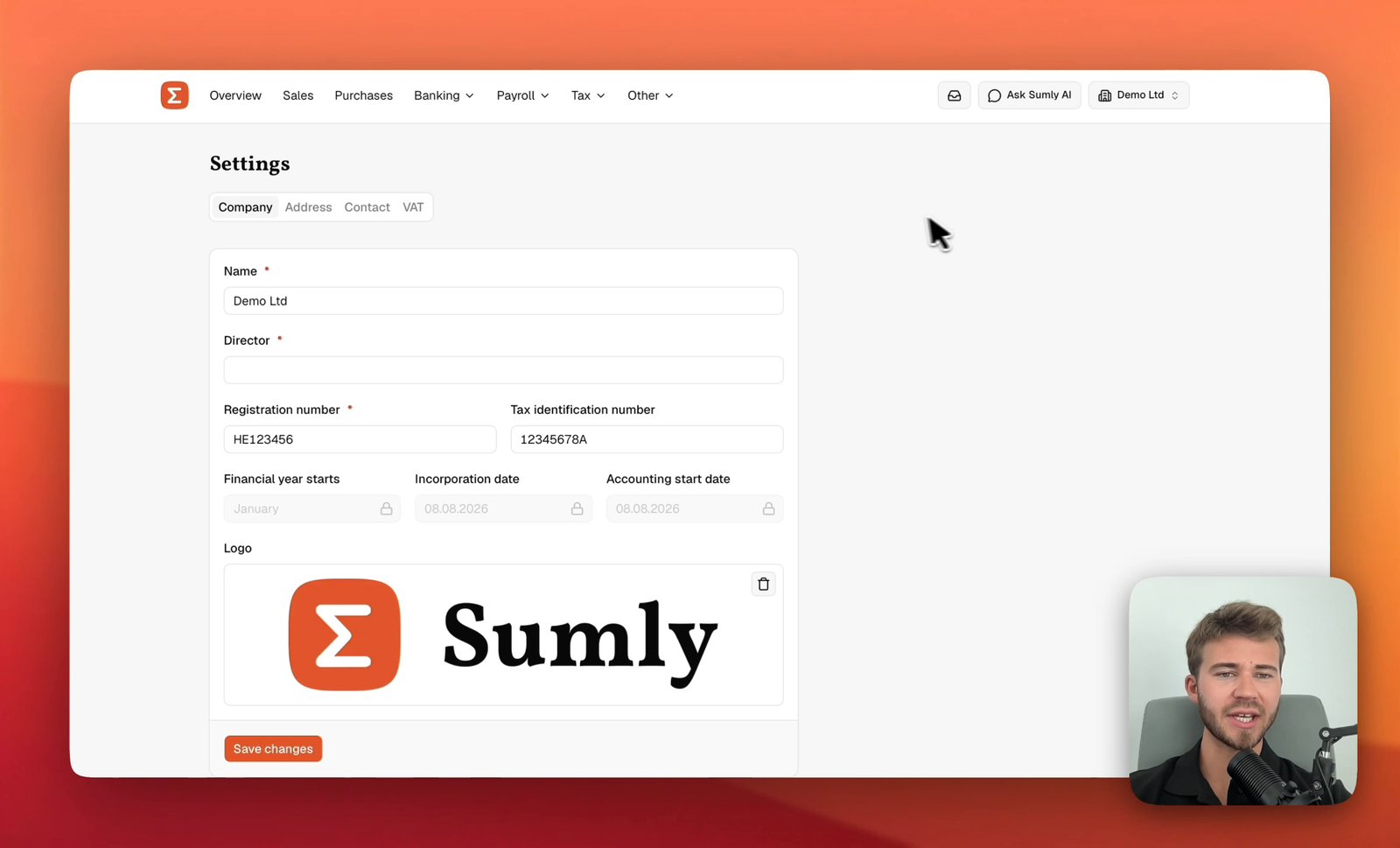 0:42
0:42- Setup
- VAT
- VIES
Company details, address and VAT status
Set your company details, address, contact and VAT status in the four Settings tabs behind the organisation switcher. Do it before you enter a transaction.
Sumly team0:42 video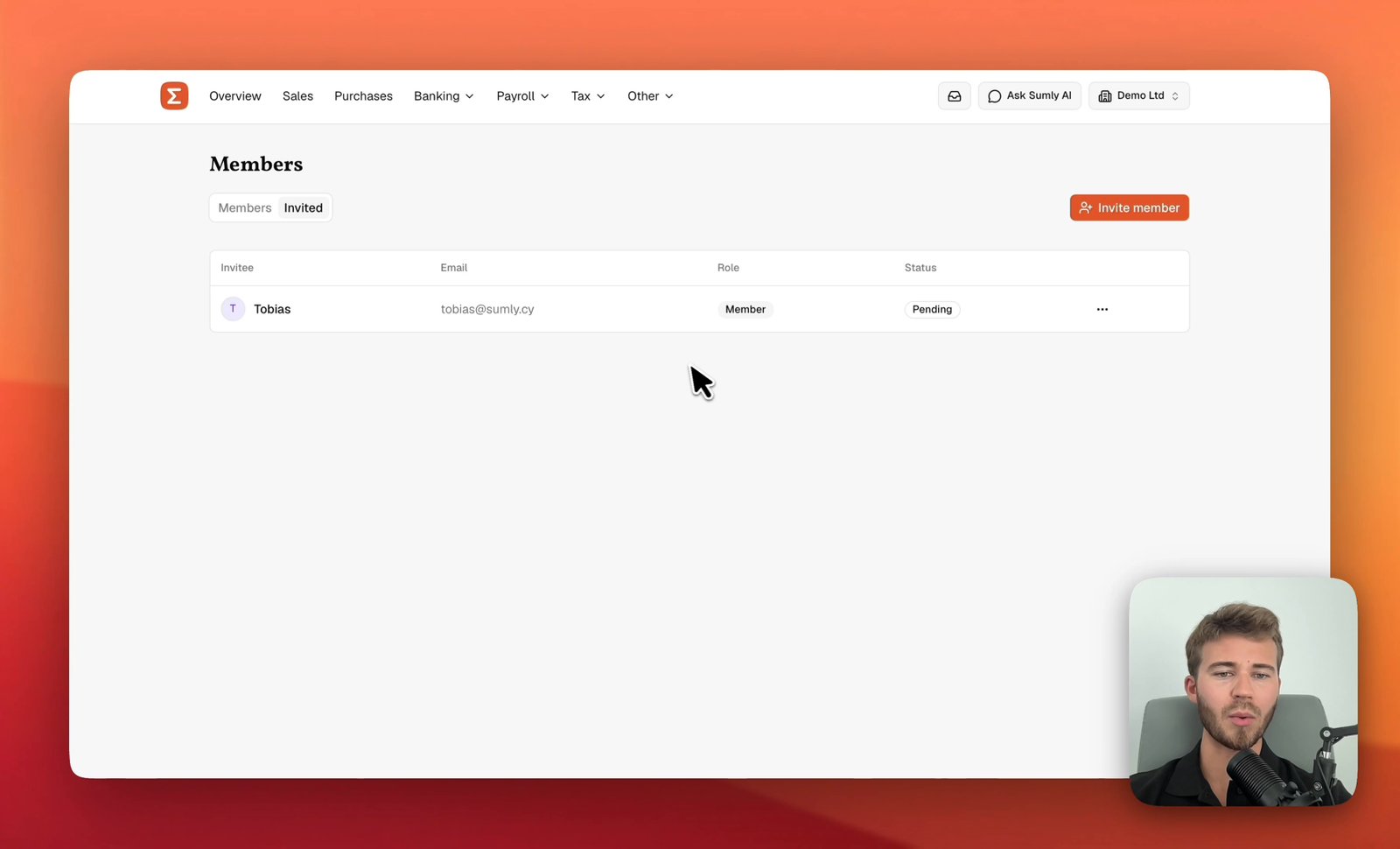 0:53
0:53- Setup
Invite your team into Sumly
Invite a co-founder, a colleague or your outside accountant to your Sumly organisation by email, choose the role they get, and track the invite.
Sumly team0:53 video
Ready when you are.
Start a new company, or bring the one you already have.