- Invoicing
- Bank
Create and send a sales invoice
Raise an invoice on the Sales page in Sumly, set the terms and the account it's paid into, check the PDF, then email it to the customer.
 Sumly team
- Published
- 1:53 video
On this page5 sections
Billing a customer takes one pass through one form. You raise the invoice on the Sales page, Sumly numbers it and builds the PDF, you email it, and Sumly matches the payment when the money lands. Do it on the day the work is done, not at month end.
Start on the Sales page
Open "Sales" in the top navigation. Two buttons above the list are easy to mix up. "+ Register sale" is for a sale you're not invoicing. "Send invoice" opens the invoice form. Anything you start and don't finish stays in the list with a "Draft" status chip.
The form is headed "Create invoice". "Invoice no." is greyed out and reads "Assigned when sent". You don't pick the number. It appears once the invoice exists. Fields with a red asterisk are required, and "Create invoice" stays greyed out until they're filled in and the line has a value.
Fill in the details, then the line
Pick the customer
Click "Customer" to open your existing contacts. For a new customer, the add-contact icon next to the field opens the "New contact" dialog, with "Name", "VAT ID", "E-mail" and a "Registered for EU VAT (VIES)" tick box for EU business customers. VIES is the EU system for checking a business VAT number. "Our reference" and "Your reference" are optional.
Set the invoice date
"Invoice date" opens a calendar. Your payment terms count forward from it, so set it first.
Choose payment terms
"Payment terms" goes from "Due today" through "Net 7", "Net 14", "Net 30", "Net 60" and "Net 90". "Net 30" means payment is due 30 days after the invoice date. The due date follows from your choice and shows under the field.
Choose the account it is paid into
"Paid into" lists the bank accounts connected to Sumly, and the IBAN of the one you pick prints on the PDF. Pick the wrong one and the PDF sends your customer to the wrong account. "Note on the invoice" sits under it and is optional, like the two reference fields.
Write the line
Type the "Description", then "Unit price" and "Qty". "Discount" is an optional percentage. The bookkeeping account sits under the description, already filled in. It is easy to miss when it should be something else, so check it.
Check the VAT, then create it
You set VAT on each line, not on the whole invoice. The dropdown has the Cyprus rates, plus "None" and "Exempt" as separate options. Read the totals row under the table, then click "Create invoice".
Which rate belongs on a line depends on the sale, not on Sumly. Our guide to Cyprus VAT rates works through it.
Check the PDF before it goes out
Creating the invoice opens its own page. The number is assigned, the balance card reads "Awaiting payment", and the PDF is already in the attachments card. Click "View invoice PDF" and read it as your customer will. Check the number, the due date, the IBAN under "Account", and "Amount due". Cyprus invoice requirements sets out what a Cyprus invoice must show. "View bookkeeping", next to it, shows the entry the invoice posted.
Send it from the invoice page
Click "Send email" and the invoice goes. There's no message to write and no preview to approve, so the PDF you just read is what the customer gets. A pop-up confirms it: "The invoice is on its way." The button needs an email address on the contact. Without one, it stays unavailable and the card tells you why. "Send reminder" sits next to it for chasing payment later.
When the money arrives
You don't need to do anything else until the customer pays. When the payment reaches your bank, Sumly AI suggests the match. A "We found a match" card appears on the right of the invoice, showing the transaction it thinks settles this one. "Approve" accepts it and settles the invoice against that transaction. "Dismiss" rejects it and leaves the invoice open. "Register payment" is for money that never shows up in your bank feed. The monthly routine is in our Cyprus bank reconciliation guide.
Common questions
That's invoices out. Bills coming in work the other way round, starting at Record a supplier invoice from your inbox. Next is Run a monthly payroll, the one job in the month that happens on a date someone else set.
More tutorials.
 2:52
2:52- Setup
- Bank
- VAT
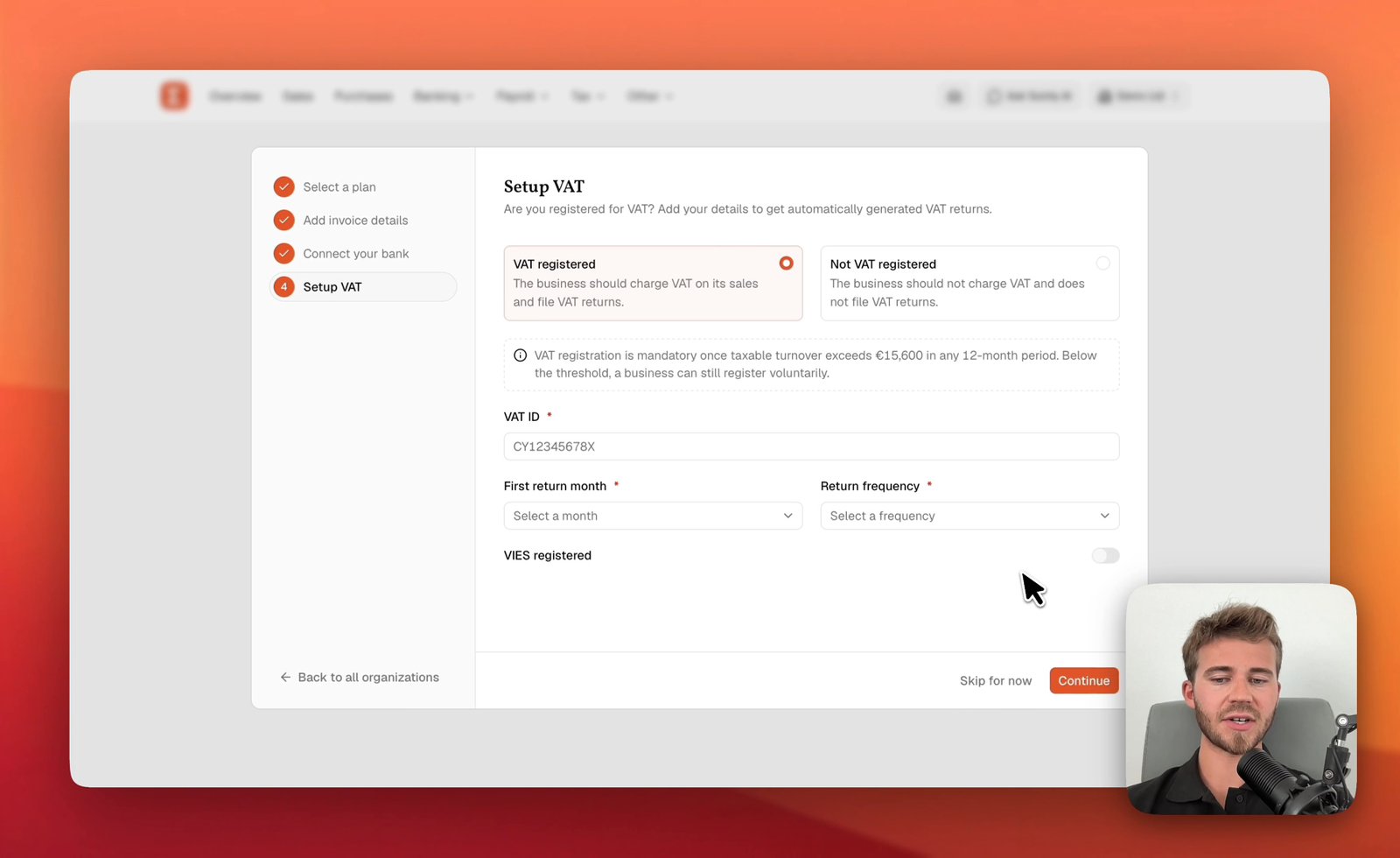
Set up your Sumly account and company
Create your Sumly login, add your company as an organisation, then work through the four setup steps: plan, invoice details, bank and VAT status.
Sumly team2:52 video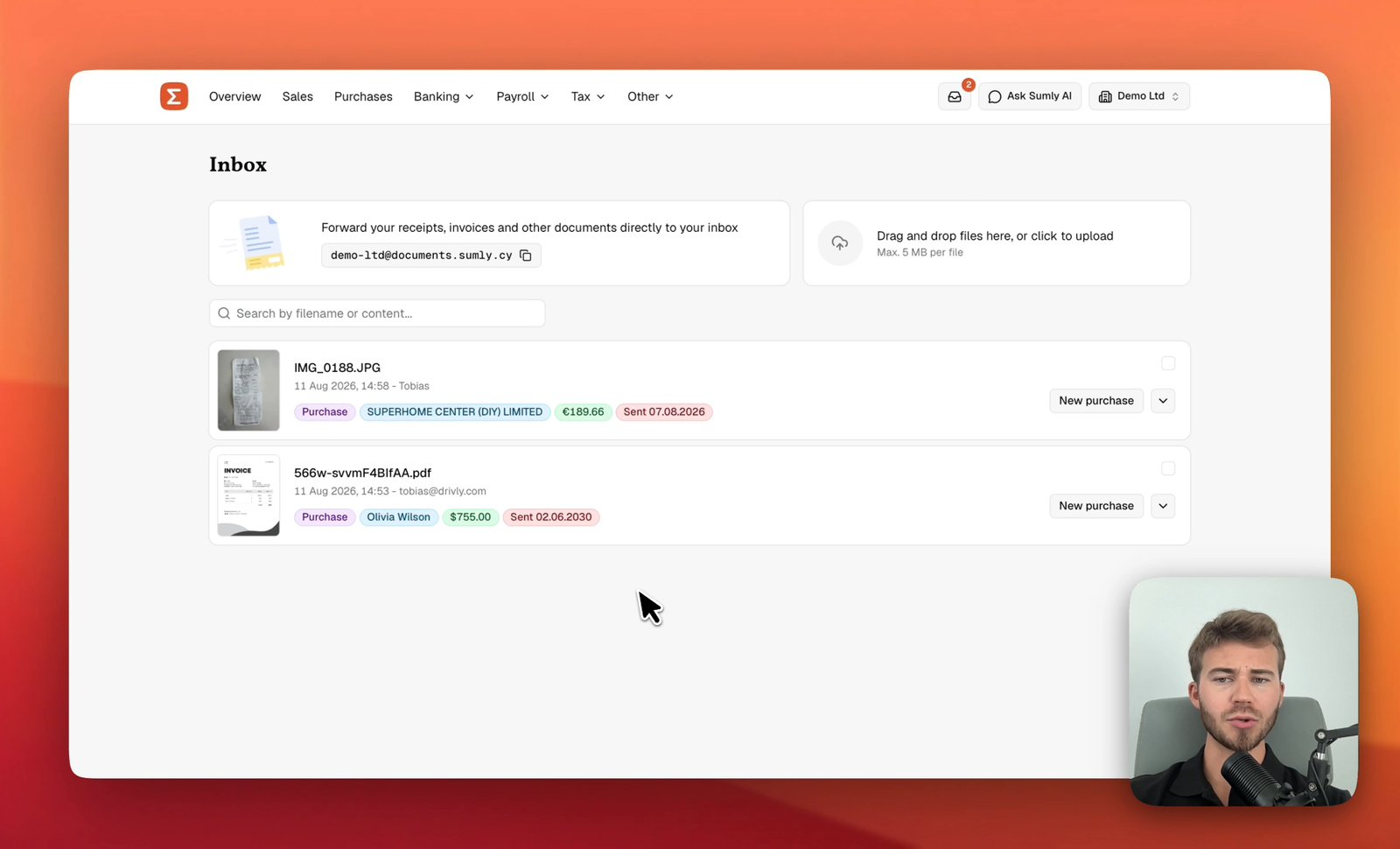 1:42
1:42- Inbox
- Bookkeeping
Get receipts and bills into your inbox
Forward supplier invoices to your company's Sumly address, drag receipt photos onto the page, and check the supplier, amount and date Sumly reads from each one.
Sumly team1:42 video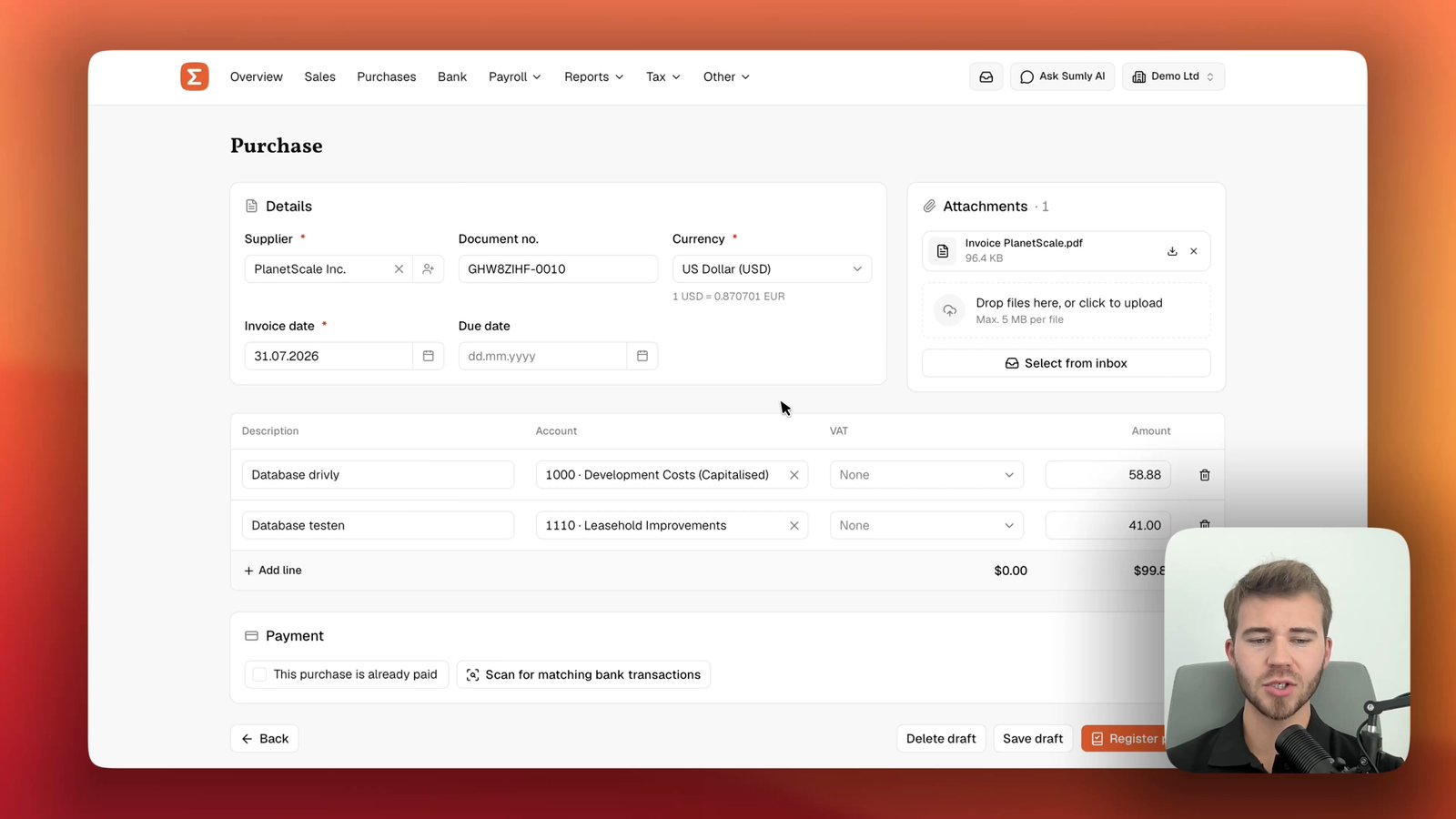 0:59
0:59- Inbox
- Bookkeeping
Record a supplier invoice from your inbox
Turn a bill in your Sumly inbox into a posted purchase. Code it to the right accounts, check it against the bank and settle it with a payment.
Sumly team0:59 video
Ready when you are.
Start a new company, or bring the one you already have.