- Inbox
- Bookkeeping
Record a supplier invoice from your inbox
Turn a bill in your Sumly inbox into a posted purchase. Code it to the right accounts, check it against the bank and settle it with a payment.
 Sumly team
- Published
- 0:59 video
On this page6 sections
A supplier bill has landed in your inbox. Here's how to turn it into a purchase in your books, coded to the right accounts, checked against the bank and settled. Do it as documents arrive, or in one pass before you close the month.
Start from the document, not a blank form
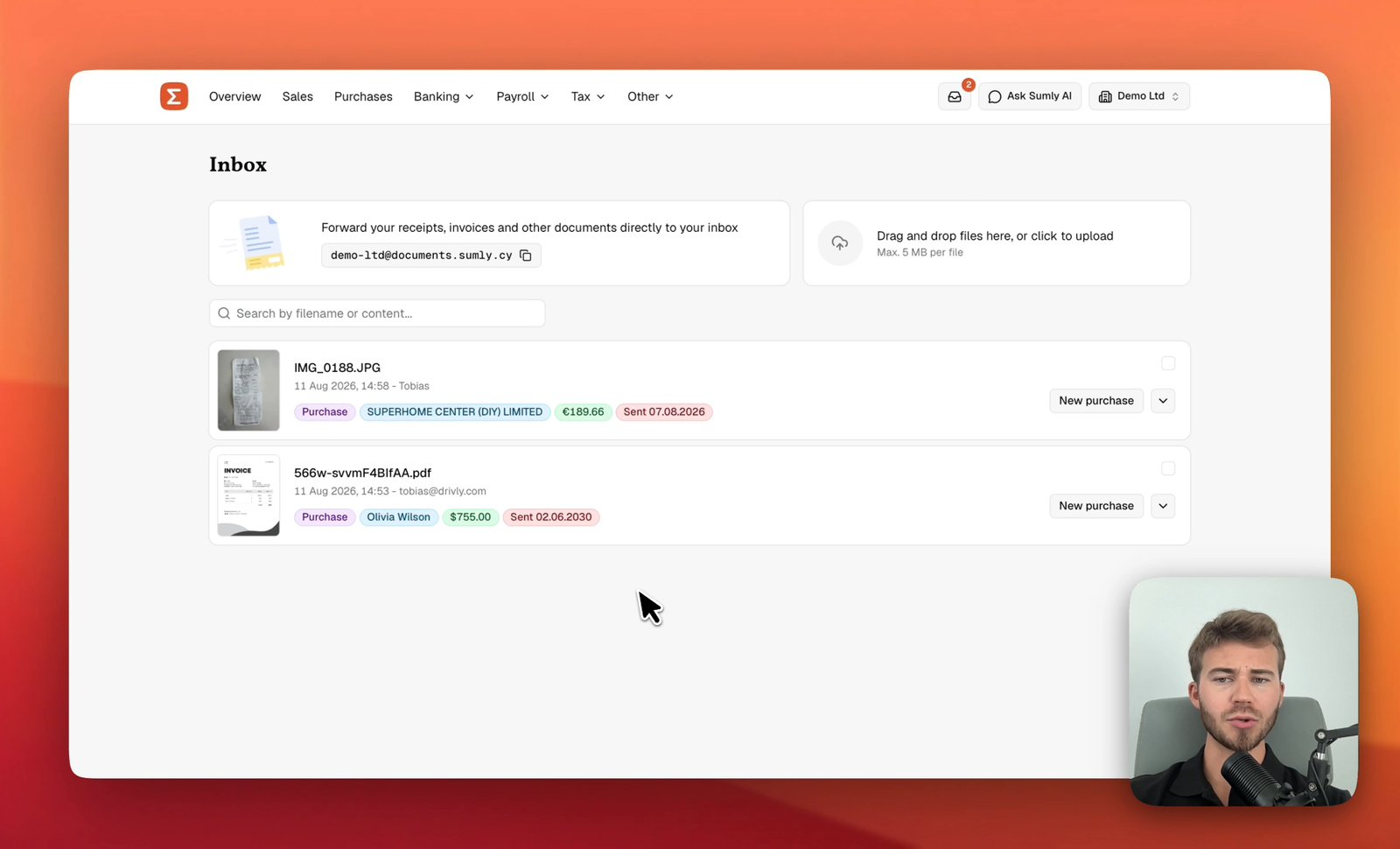
Start the purchase from the bill in your Inbox, and Sumly fills in the draft from the document. Open the Inbox from the envelope icon in the top bar. The badge shows how many documents are waiting. Each row shows the file, when it arrived and who sent it, next to what Sumly has already read from it: the supplier, the amount and the date the invoice was sent.
Find the bill and click New purchase on its row. You check what Sumly read, code the lines, then register the purchase and settle it. If your inbox is empty, Get receipts and bills into your inbox shows how documents get there.
Check the header before the lines
The draft opens with the header already filled from the PDF, so check it first. It has Supplier, Document no., Currency and Invoice date. Only supplier, currency and invoice date carry the asterisk that marks them as required. Sumly leaves Due date for you. If you leave it empty, the finished record shows a dash.
The currency comes from the invoice, not from your company, and the rate Sumly used sits under the field. Sumly carries the PDF across under Attachments, so the document stays with the entry. You'll want that when someone asks to see the records behind a figure. To attach another document to the same purchase, use Select from inbox.
If the supplier isn't on the list yet, add them first. Add a customer or supplier shows how.
Code every line to an account
Give every line an account before you register. Sumly fills in a description and an amount for each line it found, but it leaves Account empty and sets VAT to None on every line. Click the Account cell to open the chart of accounts, grouped by heading, numbered and searchable. If the bill has a line the extraction missed, use + Add line.
Register purchase stays greyed out until every line has an account. That's the check, so nothing gets posted half-coded.
Check the bank before you register
Scan for the bank transaction that paid the bill. At the bottom of the draft, the Payment block has a This purchase is already paid checkbox and a Scan for matching bank transactions button. The scan looks through the bank accounts you've connected to Sumly and matches the bill to a transaction that actually left one of them. It opens Matching bank transactions with the candidate it found: the supplier name, the account the money left, the value date and the amount.
Then you choose. Use details… takes the match. Close leaves the draft as it is. On a bill in a foreign currency, the bank line is in euro and the invoice total isn't, so the two figures won't match. That's the exchange rate, not a bad match.
Register it, then settle it
Register the purchase first, then record the payment against it. Once every line is coded, Register purchase turns solid. Click it and the purchase becomes a read-only record. It shows the header, the coded lines with Net, VAT and Amount, the supplier's VAT number, the attachment and an Invoice balance panel. View bookkeeping traces it through to the journal.
Registering a purchase doesn't pay it. The balance panel reads Unpaid, with the full amount Outstanding, until you record the money leaving. Register payment opens the New transaction dialog on the Match tab, which looks through your bank feed for the transaction that paid it. Payment and Refund are separate tabs next to it.
To enter the payment by hand, switch to Payment. It asks for the date, the bank account the money left under Paid from, and the amount. The invoice total is offered next to the amount field. If the bank took a fee on the way, tick The bank charged a fee. Then click Register payment.
When a bill never reached your inbox
Start the purchase by hand from Purchases in the top nav. Drafts sits above All purchases, so a half-finished purchase doesn't disappear on you. + Register purchase opens an empty form, and you fill in the header and the lines yourself. Sumly reads nothing from a document here, but it still suggests suppliers from your previous data, and the dropdown lists each one with its VAT number.
A purchase started this way defaults to Euro (EUR), not the supplier's currency, so change it if the bill isn't in euro. The rest is the same: code the lines, Register purchase, then Register payment.
Common questions
That's one supplier bill in the books and settled. Money coming in is the other half of the month, so the next walkthrough is Create and send a sales invoice.
More tutorials.
 1:42
1:42- Inbox
- Bookkeeping
Get receipts and bills into your inbox
Forward supplier invoices to your company's Sumly address, drag receipt photos onto the page, and check the supplier, amount and date Sumly reads from each one.
Sumly team1:42 video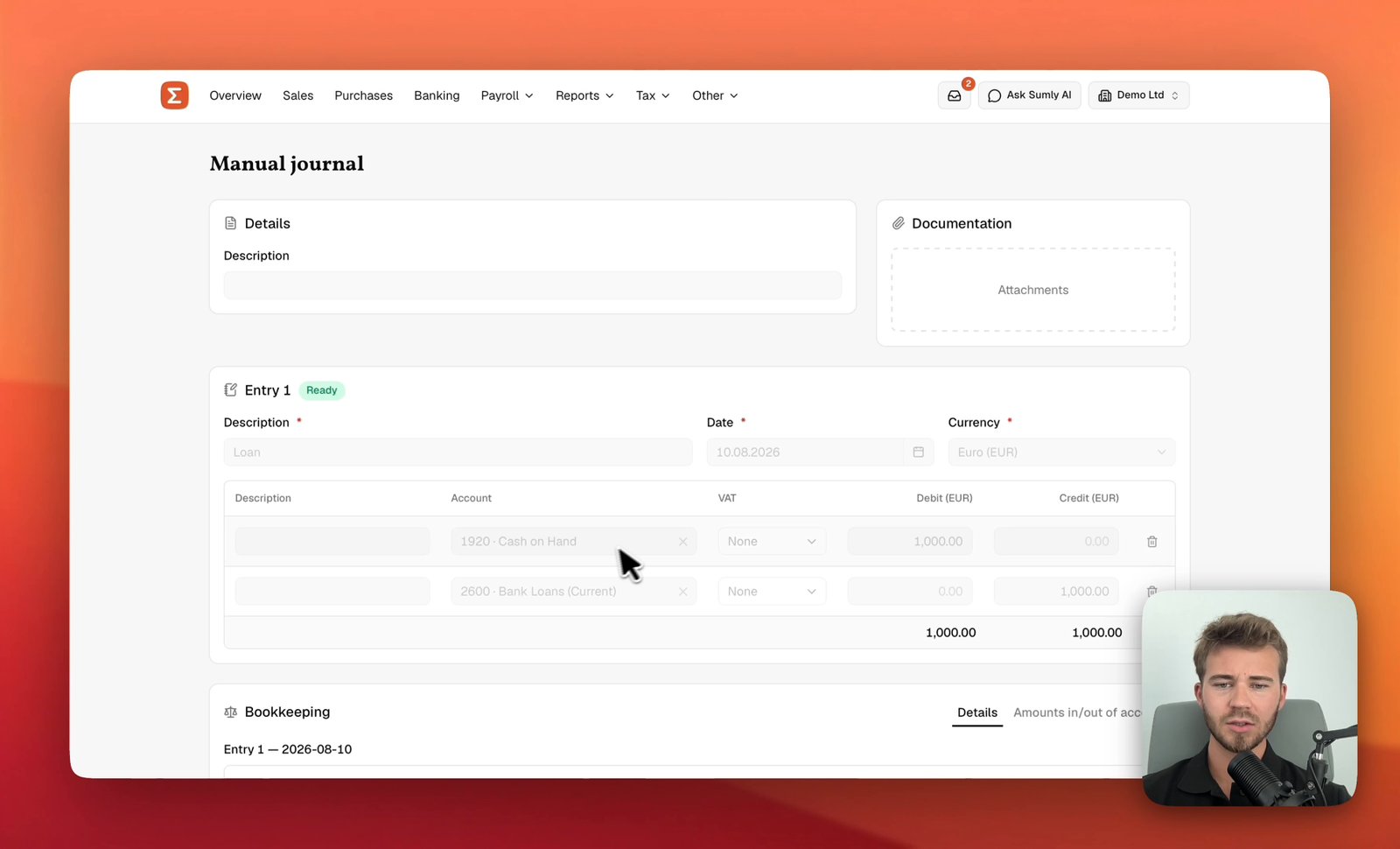 1:27
1:27- Bookkeeping
Post a manual journal
Build a balanced double-entry journal in Sumly, check it against the Bookkeeping preview and post it to the ledger, with the debits and credits explained.
Sumly team1:27 video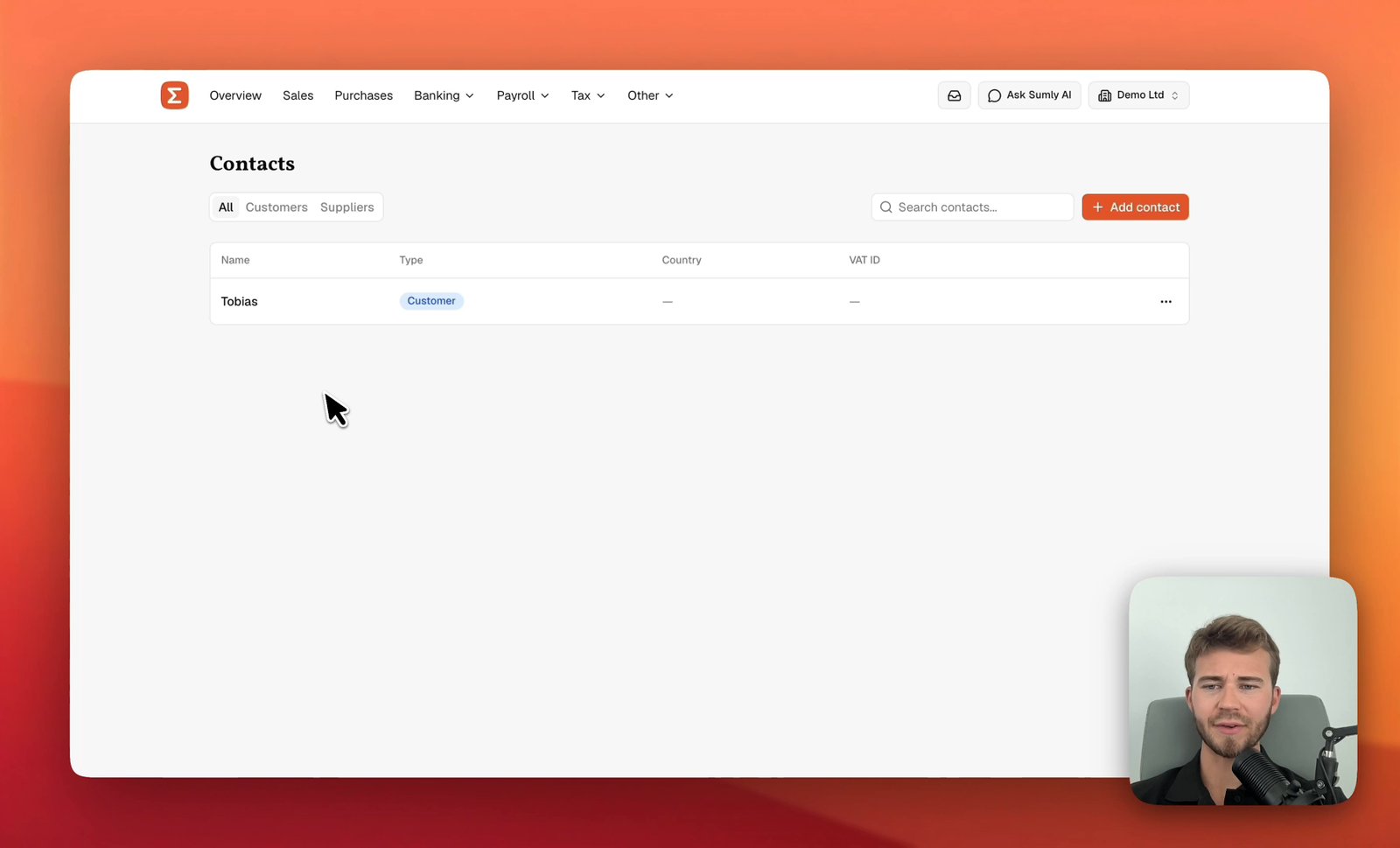 0:41
0:41- Setup
- Bookkeeping
Add a customer or supplier
Add a customer or supplier to Sumly's Contacts list, with its VAT ID, address and the defaults that carry onto its documents, then edit or archive it later.
Sumly team0:41 video
Ready when you are.
Start a new company, or bring the one you already have.